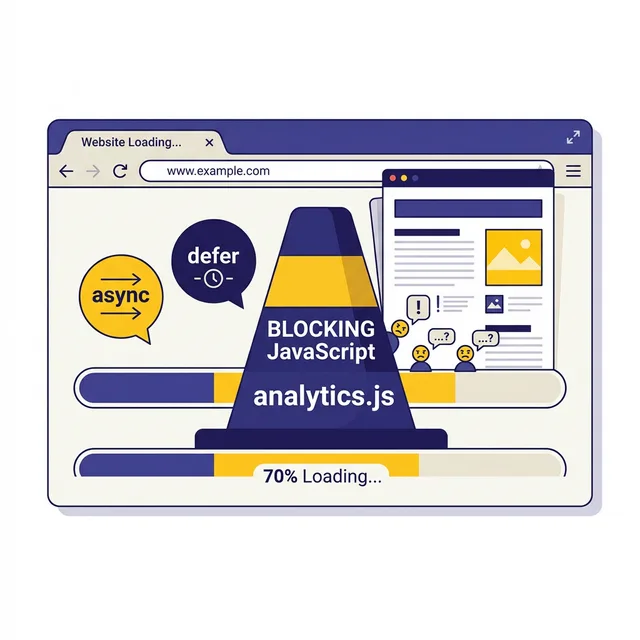
Picture this. Someone clicks your link. The browser downloads your HTML — fast, half a second. Then it hits a script tag in the head. And then... it stops. It has to download that script, parse it, execute it, then figure out if there are more scripts, download those, parse those, execute those — and only THEN will it start actually drawing anything on screen.
This is render-blocking JavaScript. It's one of the most common and most fixable sources of bad LCP and INP scores. And the fix is sometimes as simple as adding one word to a script tag.
How Render-Blocking Actually Works
When a browser encounters a <script src="..."> tag without any attributes, it does three
things in sequence:
- Stops parsing HTML entirely
- Downloads the script file
- Executes it
- Then resumes HTML parsing
This happens for every blocking script in your page. If you have five analytics/chat/tracking scripts in your head, the browser runs through this cycle five times before the user sees anything.
Why does it work this way? Because scripts can modify the DOM. A script could document.write()
something into the HTML stream. The browser has to assume every script might do this, so it plays it safe
and stops parsing. This was a reasonable design choice in 1995. In 2026, it's a massive performance
bottleneck.
The Real Cost
On an average mid-tier mobile device, 100KB of JavaScript takes roughly 150-300ms to download and execute (depending on connection and CPU). Three such scripts add 450-900ms to your LCP before a single pixel is drawn. That's well over the entire LCP budget for most pages.
Defer vs Async: Which to Use When
Both defer and async solve the blocking problem. They're different in how and when
they execute:
| Attribute | Downloads | Executes | Order | Best For |
|---|---|---|---|---|
| none (default) | Blocks parsing | Immediately | In order | Critical inline scripts only |
| defer | Parallel | After HTML parsed | In order | Most scripts (analytics, plugins, UI libs) |
| async | Parallel | ASAP (unpredictable) | No guarantee | Independent scripts (gtag, ads) |
| type="module" | Parallel | After HTML parsed | In order | ES modules (defer is default) |
The practical rule is pretty simple:
- Use
deferfor anything that depends on the DOM or on other scripts (jQuery plugins, UI libraries, your own application code) - Use
asyncfor analytics, advertising, and any script that runs independently and doesn't depend on DOM state - Use neither for inline critical scripts (but keep these tiny)
<!-- In <head> — these DON'T block anymore -->
<script src="analytics.js" async></script>
<script src="plugins.js" defer></script>
<script src="app.js" defer></script>

<!-- This DOES block — only for truly critical stuff -->
<script>
  /* tiny inline critical CSS-in-JS or polyfill */
</script>
Moving your scripts from blocking to deferred is sometimes a one-afternoon project with measurable, immediate
results in Google Search Console. I've seen LCP drop from 5.2s to 2.1s just by adding defer to
four script tags. That happened in a 10-minute code change.
How to Identify Your Render-Blocking Scripts
Before you fix anything, you need to know what's blocking. Three ways to find out:
1. Chrome DevTools > Lighthouse
Run a Lighthouse audit (F12 > Lighthouse tab > Generate report). Under "Opportunities," look for "Eliminate render-blocking resources." It lists exactly which scripts and stylesheets are blocking and by how much. This is your hit list.
2. Chrome DevTools > Network Tab
Open the Network tab, filter by JS, reload the page. Look at the waterfall. Any scripts where the blue "waiting" bar starts right after the HTML document is likely blocking. Scripts with parser-blocking behavior show a red or orange indicator.
3. VitalsFixer (free)
Run your URL through VitalsFixer and check the JavaScript section. It flags render-blocking scripts and tells you exactly which ones to address first, sorted by impact.
The Third-Party Script Problem
Here's the thing that most JavaScript guides don't say loudly enough: the biggest source of render-blocking scripts on most websites isn't your own code. It's third-party widgets.
A typical content site in 2026 loads from third parties:
- Google Analytics / GA4 tag
- A live chat widget (Intercom, Drift, HubSpot chat)
- A heatmap tool (Hotjar, Microsoft Clarity)
- Social media embeds or share buttons
- A/B testing scripts (Optimizely, VWO)
- Marketing automation tags (HubSpot, Klaviyo)
- Sometimes a full CDN-loaded commenting system
Each of those is a network request, a download, and JavaScript execution. Together, they can add 500KB-2MB of JavaScript that runs on your users' devices every single page load.
The audit question to ask about every third-party script
For each script you're loading, ask: "What would happen to my site if this disappeared tomorrow?" If the answer is "nothing meaningful," delete it. If the answer is "we'd lose analytics," you don't need it on every page synchronously — defer it.
Load third-party scripts with defer or async. Or better yet, load them only after
user interaction using a technique like this:
// Load chat widget only when user scrolls or clicks
// (Not on initial page load — save the CPU for LCP)
let chatLoaded = false;

function loadChat() {
    if (chatLoaded) return;
    chatLoaded = true;

    const script = document.createElement('script');
    script.src = 'https://chat-widget.example.com/widget.js';
    script.async = true;
    document.head.appendChild(script);
}

// Load chat after user interaction
document.addEventListener('scroll', loadChat, { once: true });
document.addEventListener('mousemove', loadChat, { once: true });
document.addEventListener('touchstart', loadChat, { once: true });
This pattern (called "lazy loading third-party scripts") means the chat widget doesn't interfere with LCP or INP at all, since it doesn't load until the user is actively engaging with the page. The widget still appears quickly — usually within a second of scrolling — but it doesn't block the initial render.
Long Tasks and the Main Thread
Even properly deferred scripts can hurt INP if they run long tasks. A "long task" is any JavaScript execution on the main thread that takes more than 50ms. During a long task, the browser can't respond to clicks, keyboard input, or any user interaction. That's where bad INP scores come from.
INP and Long Tasks
INP (Interaction to Next Paint) measures the worst-case interaction latency during a page session. If your site has a 300ms JavaScript task that runs when the user first clicks something, your INP is 300ms — poor. Long tasks are the primary cause of bad INP in 2026.
How to find long tasks
Open Chrome DevTools, go to the Performance tab, record a page load and interaction session. In the main thread row, look for red bars at the top of tasks — those are long tasks over 50ms. Click one to see its call stack and identify the function causing it.
How to fix long tasks
You can break a long task into smaller chunks using setTimeout(fn, 0) or the newer
scheduler.yield() API:
// Bad: one big task that blocks for 200ms
function processLargeDataset(items) {
    items.forEach(item => {
        doExpensiveWork(item); // runs synchronously for 200ms
    });
}

// Good: yield between chunks, letting browser process interactions
async function processLargeDataset(items) {
    const CHUNK_SIZE = 50;

    for (let i = 0; i < items.length; i += CHUNK_SIZE) {
        const chunk = items.slice(i, i + CHUNK_SIZE);
        chunk.forEach(item => doExpensiveWork(item));

        // Yield to browser — allows interaction processing
        await new Promise(resolve => setTimeout(resolve, 0));
    }
}
This pattern does the same work but splits it into chunks, yielding to the browser between each chunk. The user can click and interact between chunks instead of waiting for the entire task to finish.
Dynamic Imports and Code Splitting
If you're building a JavaScript app with a bundler (Webpack, Vite, Rollup), code splitting is your best tool for reducing initial JavaScript load.
Instead of loading all your JavaScript upfront, dynamic imports load code only when it's actually needed:
// Without code splitting: 400KB bundle loads on every page
import { HeavyChartLibrary } from './charts';
import { VideoPlayer } from './video';
import { AdminDashboard } from './admin';

// With dynamic imports: code loads only when needed
async function showChart() {
    const { HeavyChartLibrary } = await import('./charts');
    HeavyChartLibrary.render('#chart-container');
}

async function loadVideoPlayer(container) {
    const { VideoPlayer } = await import('./video');
    new VideoPlayer(container);
}

// Load from button click — not on page load
document.getElementById('show-chart').addEventListener('click', showChart);
This means the initial page load only downloads the code needed for the first render. Heavy components like charts, video players, and modals only download when the user actually needs them. Initial JavaScript budget drops dramatically. LCP and INP improve accordingly.
WordPress-Specific Fixes
WordPress is where render-blocking JavaScript problems are most common, because every plugin adds its own scripts, often without considering what the other 24 plugins are doing.
Use a caching/optimization plugin
Both WP Rocket and Perfmatters have options to enable defer for all JavaScript, excluding specific scripts that shouldn't be deferred. WP Rocket also handles lazy loading, minification, and preloading in one plugin. It's paid but genuinely saves time.
Use wp_enqueue_script correctly
If you're developing a theme or plugin, use WordPress's enqueue system with the in_footer
parameter:
// Bad: loads in <head>, blocks render
wp_enqueue_script(
    'my-script',
    get_template_directory_uri() . '/js/main.js',
    array('jquery'), '1.0.0', false // false = loads in head
);

// Good: loads in footer, doesn't block render
wp_enqueue_script(
    'my-script',
    get_template_directory_uri() . '/js/main.js',
    array('jquery'), '1.0.0', true // true = loads in footer
);
Disable scripts on pages that don't need them
Contact form scripts loading on your homepage? WooCommerce checkout scripts loading on your blog? Use Perfmatters or write custom code to dequeue scripts on specific pages. A script that doesn't load can't block anything.
"Defer Parsing of JavaScript": What That Old Warning Means
If a speed tool told you to "defer parsing of JavaScript" — old PageSpeed wording that GTmetrix and several WordPress plugins still use — it is asking for exactly what this guide covers: stop scripts from blocking the HTML parser. The fix has not changed, only the label has.
Add defer to scripts that can wait, async to independent ones, and move nothing-burger scripts out entirely. On WordPress, the same result comes from your optimization plugin's "defer JavaScript" toggle — the details are in our WordPress Core Web Vitals guide.
The Complete Script Audit Checklist
JavaScript Audit: Do This Now
-
1
Add defer to all non-critical script tags Start with analytics, chat widgets, social buttons, tracking pixels. If it doesn't need to run before the page renders, defer it.
-
2
Delete JavaScript you don't actively use Check every installed plugin and script. If you stopped using a tool 6 months ago, remove it. Dead scripts are full-weight performance penalties.
-
3
Lazy-load chat widgets and heavy third-party tools Use the scroll/click event pattern to load chat and recording tools only after user engagement. Big win for LCP and INP with no real UX cost.
-
4
Check for long tasks in DevTools Performance tab Anything over 50ms shows as a red bar. Click to see the call stack. Break up the worst ones using setTimeout chunking.
-
5
Code-split your JavaScript bundles If you're using a bundler, add dynamic imports for heavy components. Charts, modals, video players — load them when needed, not upfront.
-
6
Run a Lighthouse audit after each change Check "Eliminate render-blocking resources" and "Reduce JavaScript execution time" after every fix to confirm improvement.
What to Expect After Fixing This
From what we typically see on sites that properly defer and clean up their JavaScript:
- LCP improvement: 0.5s to 2s reduction, depending on how many blocking scripts there were
- INP improvement: often 30-60% reduction in poor interactions
- Total Blocking Time (TBT): dramatic reduction, as this directly measures the sum of long tasks
- PageSpeed score: usually 10-25 point increase on mobile
These are real numbers. JavaScript is the primary cause of poor INP on modern websites, and deferring it is the most direct fix available. Start with your analytics and chat scripts today.
Related Performance Guides
Which scripts are blocking your site right now?
Run a free analysis on VitalsFixer and get a specific list of which scripts are blocking your page and by how much.
Analyze My Site Free